

Prerequisites
Before deploying your first application, ensure you have:Qovery account - Sign up here
Kubernetes cluster - Install a cluster or connect your own
- Git Repository: GitHub, GitLab, or Bitbucket repository with a Dockerfile
- Container Registry: Pre-built Docker image in a registry (Docker Hub, ECR, GCR, etc.)
- Helm Chart: Packaged Helm application (See Helm documentation)
This guide covers Git Repository and Container Registry deployments. For Helm charts, see the Helm Configuration Guide.
Step 1: Create a Project
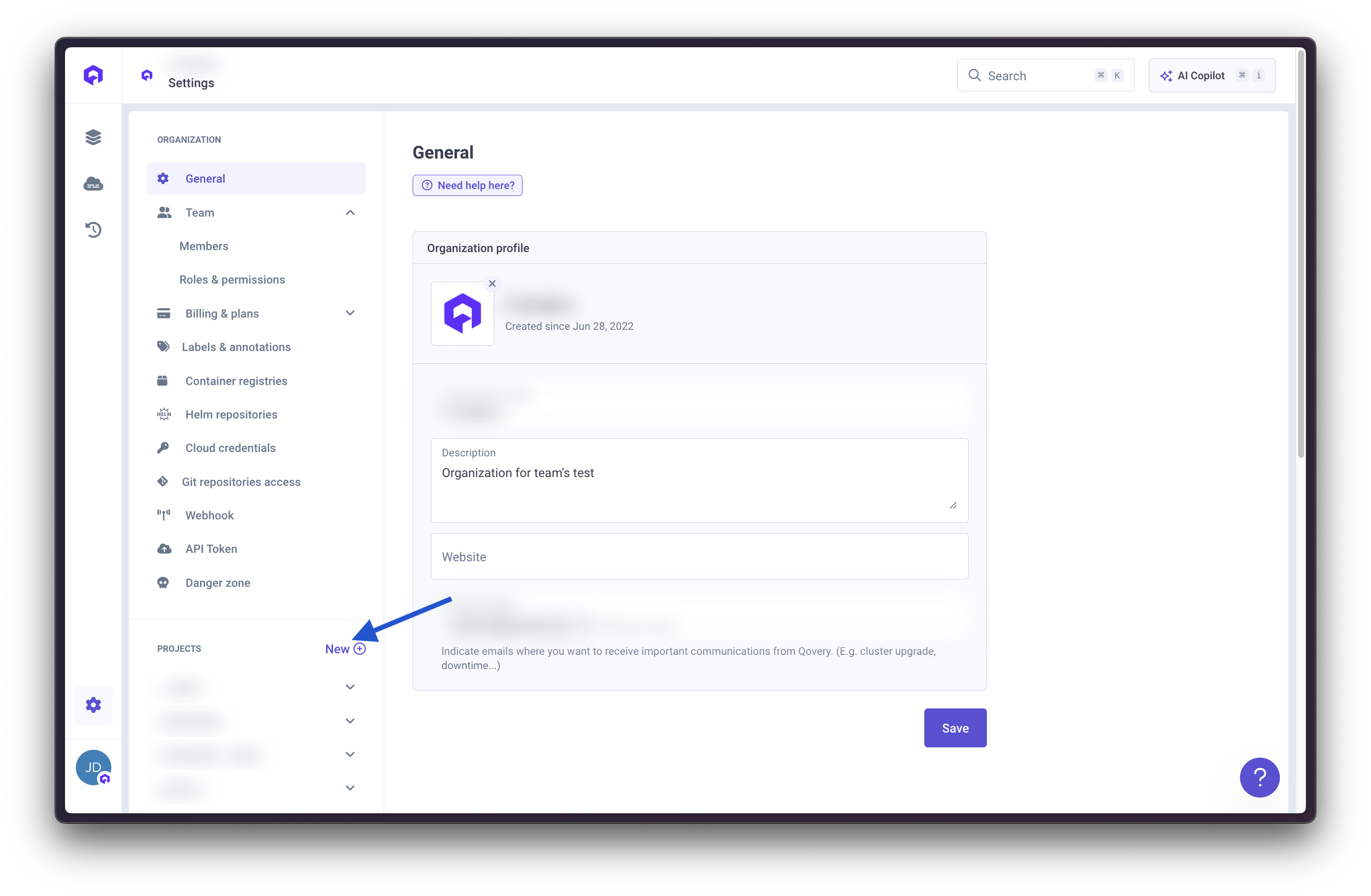
Projects organize your applications and environments. Two ways to create a project: Option A - From Project Selector (Quick):- In Qovery Console, click the Project selector in the header
- Click New button
- Enter a project name (e.g., “My First Project”)
- Click Create
- Go to Organization Settings
- Navigate to the Projects section
- Click Create Project
- Enter project details
- Click Create
Step 2: Create an Environment
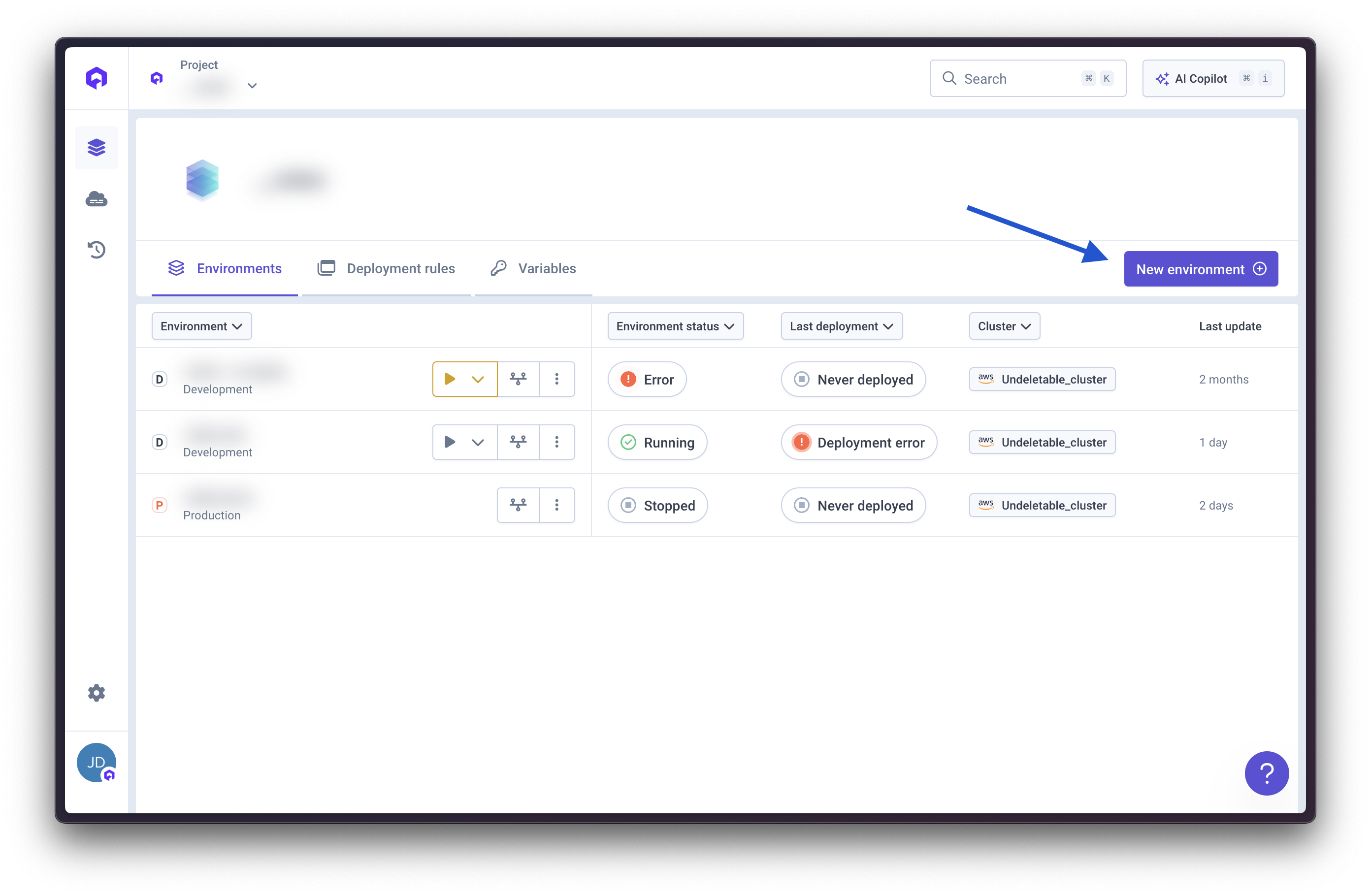
Environments represent deployment stages (production, staging, development).- Open your project
- Click Create Environment
- Enter an environment name (e.g., “production”)
- Select the environment type (PRODUCTION, STAGING, or DEVELOPMENT)
- Select the cluster where you want to deploy
- Click Create
Step 3: Choose Your Deployment Source
Qovery supports multiple deployment sources. Choose the one that fits your workflow:- Git Repository (Build with Qovery)
- Container Registry (Pre-built Image)
Best for: Building your application from source codeRequirements:
- Git repository (GitHub, GitLab, or Bitbucket)
- Dockerfile in your repository
Qovery will clone your repo, build the Docker image, and deploy it automatically.
Create Your Application
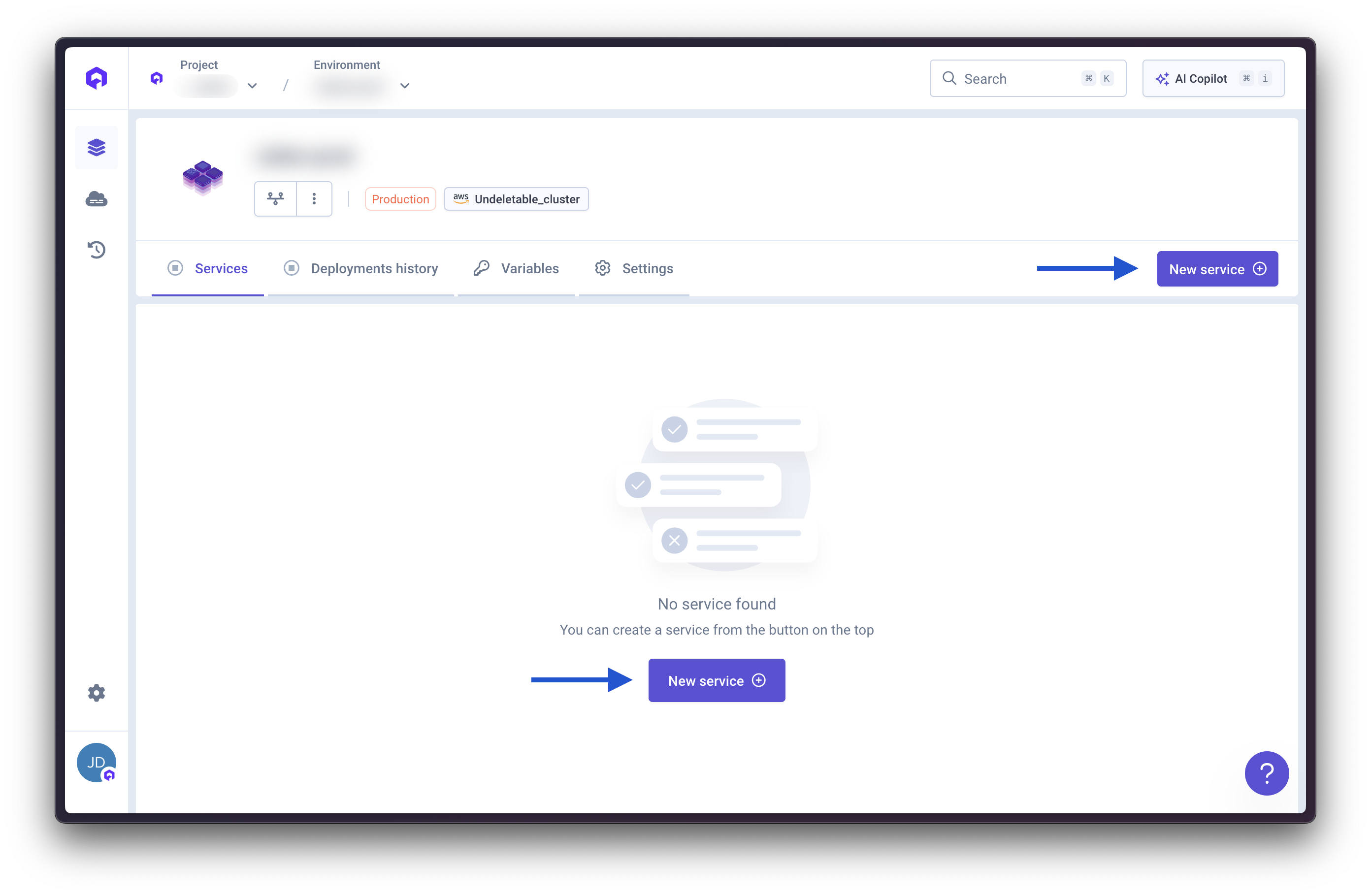
Configure Basic Settings
- Application Name: Enter a name (e.g., “my-api”)
- Application Source: Select Git Repository
Connect Git Repository
- Git Provider: Select your provider (GitHub, GitLab, Bitbucket)
- Repository: Choose your repository
- Branch: Select the branch to deploy (e.g.,
main,develop) - Root Application Path: Leave blank if Dockerfile is at root, or specify subfolder
First time? You’ll need to authorize Qovery to access your Git provider. See Git Repository Access.
Allocate Resources
Set compute resources:
- vCPU: Default 500m (0.5 core)
- RAM: Default 512 MB
- Instances: Min and max for auto-scaling (default: 1-1)
Define Ports
If your app serves HTTP/gRPC traffic:
- Port: The port your app listens on (e.g., 8080, 3000)
- Protocol: HTTPS, gRPC, TCP, or UDP
- Publicly Accessible: Enable to expose via internet
- External Port: 443 for HTTPS
Configure Health Checks (Optional)
Improve reliability with health checks:
- Liveness Probe: Checks if container is alive (restarts container if failing)
- Readiness Probe: Checks if container is ready for traffic (prevents routing traffic until passing)
/health or /healthz endpoint to your app.Set Environment Variables (Optional)
Add configuration as needed:
- API keys (mark as secret)
- Configuration values
- Feature flags
You can add these later in application settings.
Using Helm? Qovery also supports deploying Helm charts for packaged applications. See the Helm Configuration Guide for detailed instructions.
Monitor Your Deployment
Watch your application come to life:View Deployment Progress
Click on your application to see: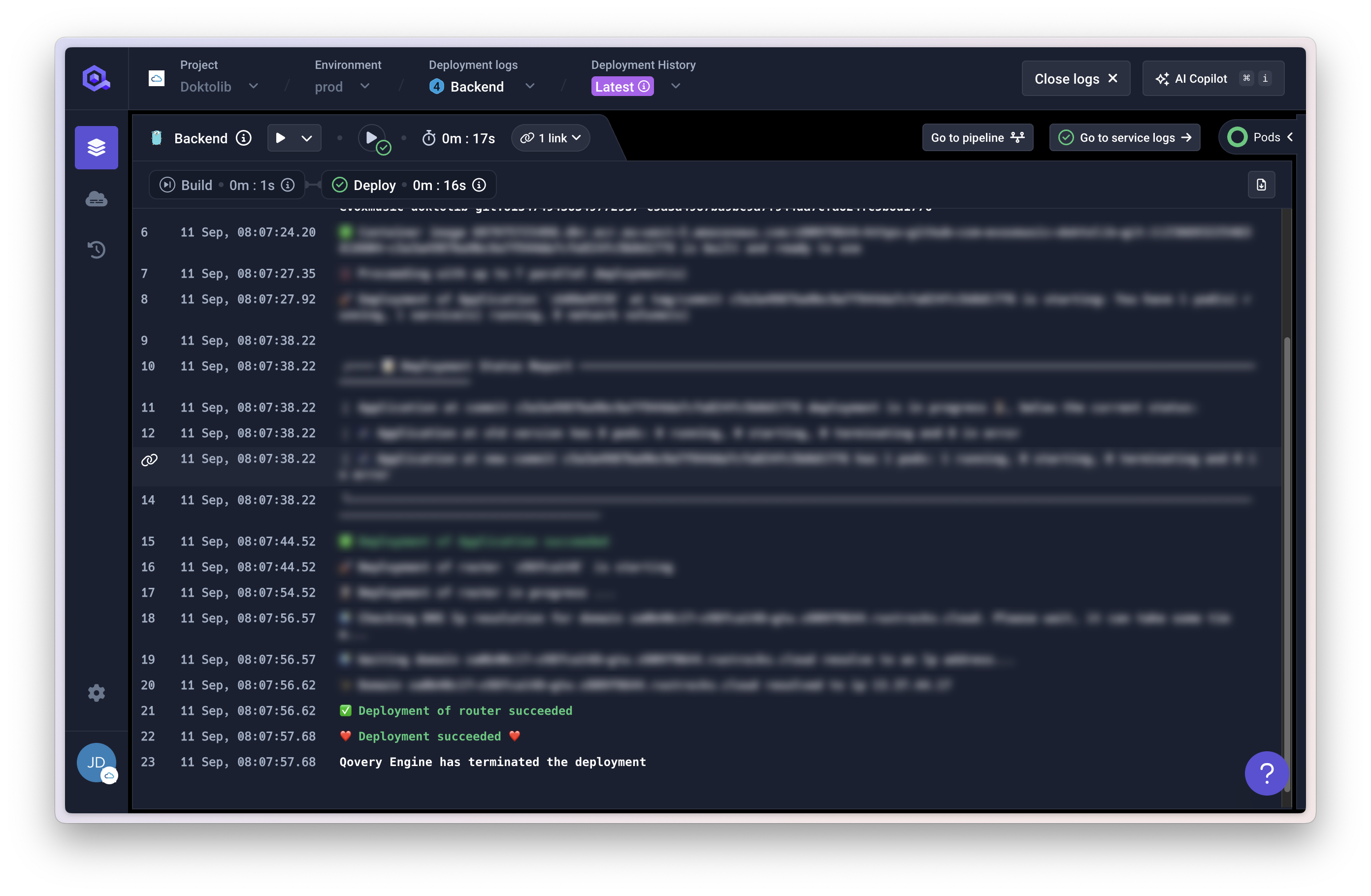
- Build logs: Container image creation
- Deployment logs: Kubernetes deployment status
- Application logs: Your app’s output
Wait for Running Status
Deployment typically takes 2-5 minutes.Status progression: 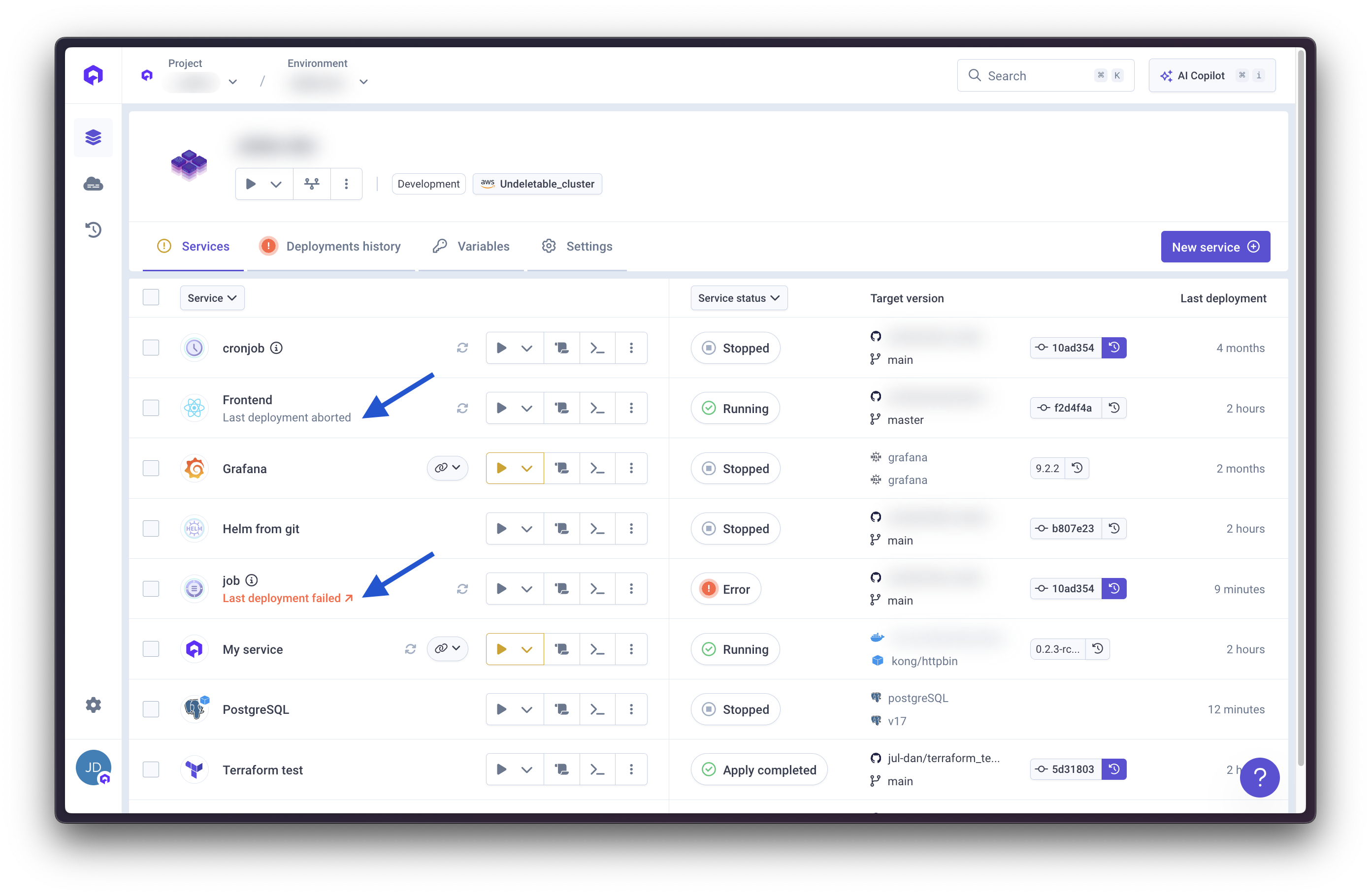
Building → Deploying → RunningWhat Happened Behind the Scenes
- Git Repository Deployment
- Container Registry Deployment
When deploying from Git, Qovery automatically:
- ✅ Cloned your Git repository
- ✅ Built a Docker image using your Dockerfile
- ✅ Pushed the image to container registry (ECR, GCR, etc.)
- ✅ Created Kubernetes deployment, service, and ingress
- ✅ Configured automatic HTTPS with Let’s Encrypt
- ✅ Started health checks and monitoring
- ✅ Made your app accessible via
https://your-app-xxx.qovery.io
Qovery handles the entire build and deployment pipeline for you!
Troubleshooting
Build Failed (Git Repository)
Build Failed (Git Repository)
Common causes:
- Missing or invalid Dockerfile
- Build dependencies not installed
- Syntax errors in Dockerfile
- Insufficient build resources
- Check build logs for specific errors
- Verify Dockerfile builds locally:
docker build . - Ensure all dependencies are in package files
- Contact Qovery support to increase build resources if needed
Image Pull Failed (Container Registry)
Image Pull Failed (Container Registry)
Common causes:
- Registry not connected to Qovery
- Image name or tag incorrect
- Authentication issues
- Image doesn’t exist
- Verify registry is connected: Container Registry Setup
- Check image name matches exactly (case-sensitive)
- Use specific tags, not
latest - Verify image exists in your registry
Application Crashes
Application Crashes
Check:
- Application logs for error messages
- Environment variables are set correctly
- Port configuration matches your app (Git: check Dockerfile EXPOSE)
- Resource limits (CPU/memory) are sufficient
- Health check endpoints are accessible
Cannot Access Application
Cannot Access Application
Check:
- “Publicly Accessible” is enabled
- App listens on
0.0.0.0:$PORTnotlocalhost:$PORT - Health checks are passing (if configured)
- Wait 2-3 minutes for DNS propagation
- Check firewall rules if using custom domains
Dockerfile Not Found (Git Repository)
Dockerfile Not Found (Git Repository)
Solutions:
- Ensure Dockerfile exists at repository root
- If in subdirectory, set “Root Application Path”
- Check filename is exactly
Dockerfile(case-sensitive) - Verify branch contains the Dockerfile
Next Steps
Add a Database
Connect PostgreSQL, MySQL, Redis, or MongoDB

Deploy Helm Charts
Deploy packaged Helm applications
Custom Domain
Use your own domain name
Environment Variables
Manage secrets and configuration
Auto Deploy
Enable automatic deployments from Git
Container Registry
Connect Docker Hub, ECR, GCR, and more